
Keeping Canvas Text Crisp at Any Zoom
Your Canvas labels are sharp at the default view but turn fuzzy the moment the user zooms or pans into the chart.
The cause is almost always that the zoom multiplies a transform which then stretches already-rasterized glyphs, or that the chart caches a rendered layer as a bitmap and scales that bitmap up. Text is a sub-pixel feature; any scale applied after rasterization blurs it. This guide is part of Text & Label Rendering in Charts, and it is the zoom-time companion to Fixing blurry Canvas on high-DPI displays — that page fixes the static DPR mismatch; this one keeps text crisp while the scale changes under interaction, and assumes you already handle DPR correctly.
Diagnostic checklist
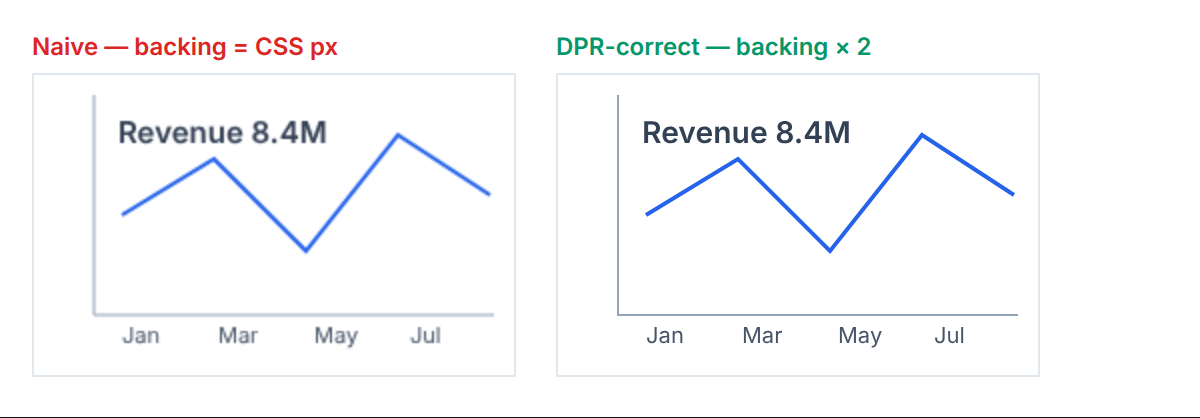
devicePixelRatio and stays crisp.Broken vs fixed
// ❌ BROKEN: text is baked into the same transform that the zoom scales.
function drawZoomed(ctx: CanvasRenderingContext2D, zoom: number, label: string) {
  ctx.save();
  ctx.scale(zoom, zoom);       // scales EVERYTHING drawn after it, including glyphs
  ctx.font = "12px Inter";     // 12px in world units → 12*zoom px of blurred raster
  ctx.fillText(label, 100, 50);
  ctx.restore();
}
// ✅ FIXED: transform positions only; glyphs are drawn at a fixed screen size.
interface ViewTransform { scale: number; tx: number; ty: number; }
function drawCrisp(
ctx: CanvasRenderingContext2D,
view: ViewTransform,
worldX: number,
worldY: number,
label: string,
) {
// Map the world anchor to a SCREEN pixel, then draw text un-transformed.
const screenX: number = worldX * view.scale + view.tx;
const screenY: number = worldY * view.scale + view.ty;
ctx.setTransform(1, 0, 0, 1, 0, 0); // reset: draw in device/screen space
ctx.font = "12px Inter"; // constant on-screen size at every zoom
ctx.textBaseline = "alphabetic";
// PERF: snap the baseline to a whole pixel so stems land on the grid.
ctx.fillText(label, Math.round(screenX), Math.round(screenY));
// A11Y: label text must also live in an offscreen table; canvas pixels are opaque.
}The principle is to separate what the zoom scales from what it does not. Positions are in world coordinates and must scale with the zoom, so a data point that is at world (100, 50) moves across the screen as you zoom. But the glyph itself should render at a constant on-screen point size — 12px at 1× and 12px at 4× — because label legibility should not depend on zoom level, and, crucially, because drawing at the final screen size lets the rasterizer hint the type freshly instead of interpolating a stretched bitmap. Apply the transform to the anchor, reset the transform, then fillText at the screen coordinate.
If you deliberately want text to grow with zoom (a map label that scales with the terrain), you still re-rasterize rather than scale a bitmap: multiply the font size by the zoom (ctx.font = \${12 * view.scale}px Inter``) and draw at the un-transformed anchor. The glyph is then rendered once at its true final size, crisp, rather than drawn small and stretched.
Step-by-step fix
// Full per-frame draw: marks scale with the view, text re-rasterizes crisply.
function renderFrame(
  ctx: CanvasRenderingContext2D,
  view: ViewTransform,
  points: Array<{ x: number; y: number; label: string }>,
  dpr: number,
) {
  // 1) Marks: apply DPR + view transform, draw geometry in world space.
  ctx.setTransform(dpr * view.scale, 0, 0, dpr * view.scale, dpr * view.tx, dpr * view.ty);
  for (const p of points) {
    ctx.beginPath();
    ctx.arc(p.x, p.y, 3 / view.scale, 0, Math.PI * 2); // keep dot radius constant on screen
    ctx.fill();
  }
  // 2) Labels: reset to device space, draw each glyph fresh at a fixed size.
  ctx.setTransform(dpr, 0, 0, dpr, 0, 0);
  ctx.font = "12px Inter";
  for (const p of points) {
    const sx = p.x * view.scale + view.tx;
    const sy = p.y * view.scale + view.ty;
    ctx.fillText(p.label, Math.round(sx) + 6, Math.round(sy));
  }
}
Verification
// Assert the text draw pass carries no residual view scale (only DPR).
function assertTextTransform(ctx: CanvasRenderingContext2D, dpr: number): void {
  const t: DOMMatrix = ctx.getTransform();
  console.assert(t.a === dpr && t.d === dpr, `text pass scale ${t.a} should equal dpr ${dpr}`);
}
In DevTools, zoom the chart to its maximum and screenshot a label, then zoom to 1× and screenshot the same label; the glyph edges should show the same crisp anti-aliasing at both scales, not a soft halo at high zoom. Toggling device emulation between DPR 1 and 2 should keep text sharp at every zoom level.
Why re-rasterizing beats caching a text layer
It is tempting to treat static labels as a cacheable layer — render them once into an offscreen canvas, then drawImage that layer each frame to skip the per-frame fillText calls. For geometry this is a sound optimization. For text it is a trap, because the cached layer is a bitmap fixed at one resolution, and the instant the zoom scales it the glyphs interpolate and blur exactly as if you had never fixed the DPR. The cost you are trying to avoid — re-running fillText — is small: text rasterization is heavily optimized in every browser, and a few hundred labels redraw in well under a millisecond. The blur you introduce by caching is large and immediately visible. The rule is that geometry can be cached and transformed, but text must be re-rasterized at whatever scale it is finally displayed.
There is a middle path for extreme label counts: cache the glyph layer at device resolution for the current zoom level, and re-render the cache only when the zoom actually changes, not on every pan. During a pan the scale is constant, so the cached layer is valid and you only translate it — crisp, because translation by whole pixels does not interpolate. When the scale changes, invalidate and re-fillText the layer once at the new resolution. This gives you the caching win during the common interaction (panning) without the blur, because you never scale the cached pixels — you only ever translate them or regenerate them.
Edge cases & gotchas
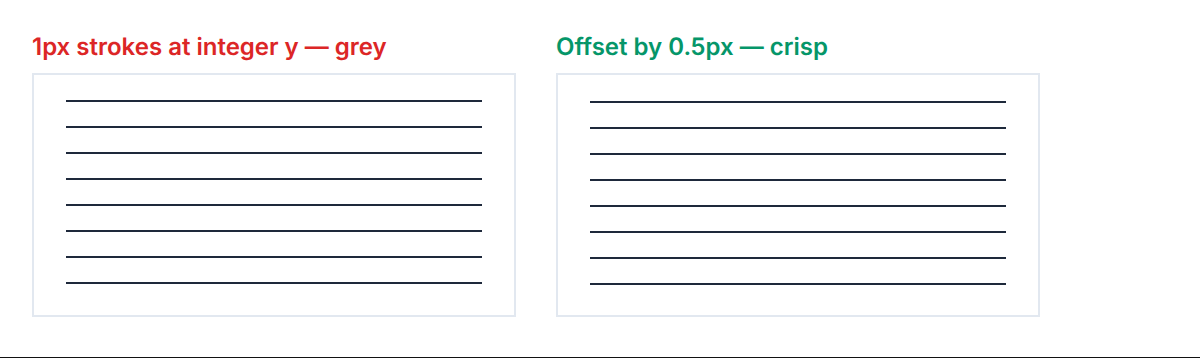
- Fractional pan offsets. Panning by a non-integer pixel offset shifts baselines off the grid and softens text even at a fixed scale. Round the translation to whole device pixels when text crispness matters more than sub-pixel smoothness of motion.
imageSmoothingEnabledhides the bug. Disabling smoothing makes a scaled text bitmap look jagged rather than blurry, which is not a fix — it is a different artefact. The only fix is to re-rasterize; leave smoothing at its default for photographic content.- Constant-radius marks. If dots or line widths are drawn under the view transform, they grow with zoom too. Divide their radius or line width by
view.scaleto keep them a constant on-screen size, as the reference frame does. - Font not loaded before first zoom. A web font that swaps in mid-interaction re-rasterizes at a different width and can shift label layout. Gate the first crisp render on
document.fonts.ready. - Retina plus zoom compounding. The device pixel ratio and the view zoom both scale the backing store. Apply DPR to the transform and keep the view scale separate, or you double-count and either blur or overshoot the backing-store size.
- High zoom exceeding max canvas size. Multiplying the backing store by both DPR and a large zoom can exceed the browser’s maximum canvas dimension. Cap the effective backing-store scale and rely on the view transform beyond that point.
Frequently Asked Questions
Why does my Canvas text blur when I zoom but not at the default view?
Because the zoom is scaling glyphs that were already rasterized. Text is a sub-pixel feature, so any scale applied after fillText interpolates the pixels and softens the edges, whereas at the default 1× view there is no post-raster scale to blur them. The fix is to draw text at its final on-screen size with the view transform reset, so the rasterizer hints the type fresh instead of stretching a bitmap.
Should Canvas labels grow when the chart zooms in?
Usually not. Chart chrome — axis ticks, value labels, legends — reads best at a constant on-screen point size regardless of zoom, so draw it at a fixed font size with the view transform reset. Reserve zoom-scaled text for cases like map labels that are conceptually part of the world, and even then set the font size to base * zoom and draw fresh rather than scaling a cached raster.
Is this the same problem as fixing blurry Canvas on Retina displays?
They share a cause — a scale applied after rasterization — but they are different fixes. The Retina fix is static: match the backing store to devicePixelRatio once so nothing is upscaled. This is dynamic: keep text crisp while the zoom factor changes under interaction by re-rasterizing glyphs at each new scale. You need the DPR fix in place first, then this on top for interactive zoom.
Related
- Text & Label Rendering in Charts — the parent guide to chart typography.
- Fixing blurry Canvas on high-DPI / Retina displays — the static devicePixelRatio fix this builds on.
- Measuring text width to avoid label collisions — placing labels once you can measure them.
- Rendering 100k scatter points without frame drops — the dense-Canvas context where re-rasterizing text matters.